 The Museum of HP Calculators
The Museum of HP Calculators
You may find that Internet Explorer will warn you every time you try to access a PDF file that is on your own computer. Even though you have IE set to load PDF files on the web, by default, IE considers your own hard disk and CD-ROM drive to be less secure than the Internet.
When you select any document, the IE information bar will appear. Click anywhere on the bar and select Allow Blocked Content as shown below:

You will receive another warning that some active content may harm your computer. Remember that the "active content" in this case is just an Adobe Acrobat document being viewed through the Adobe Acrobat Reader that you have already installed.
You can set Internet Explorer to stop warning you by setting one or two options. Go to Tools/Internet Options
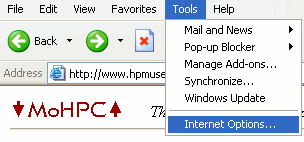
Then select Advanced and scroll down to the security area:
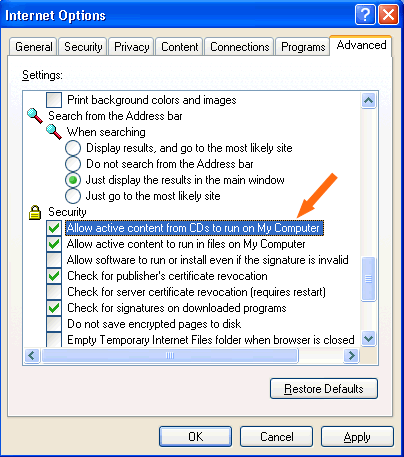
If you will only be viewing from the CD or DVD, then check "Allow active content from CDs to run on My Computer". If you wish to copy the museum CD/DVD to your hard disk and browse from there, then check "Allow active content to run in files on My Computer".
At the time of this writing, browsers such as Firefox, Mozilla, Opera, Konqueror, and Safari, do not attempt to protect you from your own local document files.
Use Windows explorer to navigate to the PDF of your choice and double click on it. Oddly, Windows has no concern about launching the same PDF file in Windows Explorer that it wants to protect you from launching in Internet Explorer.
 Go back to the start page